
- Training
- Service
- Promotion
- Schedule
- Testing Center
- News
- Contact
8/18/2020


We've got 19 tips for you!
Record your narration audio with the Windows Voice Recorder app, then open your video project in Photos  and select Audio
  > Narration
 > Import audio.
.png)
From the video editor in Photos  , select Change aspect ratio
  , then choose the ratio (16:9 for wide screen or 4:3 for TV) and portrait or landscape. Select Export or share
  to save your changes.
.png)
Open the video project in Photos  . In the storyboard, right-click the clip that needs changes and select Resize > Remove black bars.
.png)
Open Photos  , select Create > Album
  . Select the pictures you want to include, then select Create.
.png)
Open Photos  , select a photo or video that's saved on your PC, right-click it, and select File info. Edit the date and select Close.
.png)
Open Photos  , select a photo or video, and select Edit & Create
  > Add 3D effects. Or, if you're in a video project, select 3D effects from the storyboard menu. Then follow the onscreen instructions.
.png)
Transform your photos and video clips into a video with music, text, and motion. Open Photos , select Create, then choose between Automatic video with music
  or Custom video with music
  .
.
.png)
Open Photos  and select Create > Automatic video with music
  . Then follow the onscreen steps. After the video is created, select Remix it for me
  to instantly change the look and feel.
.png)
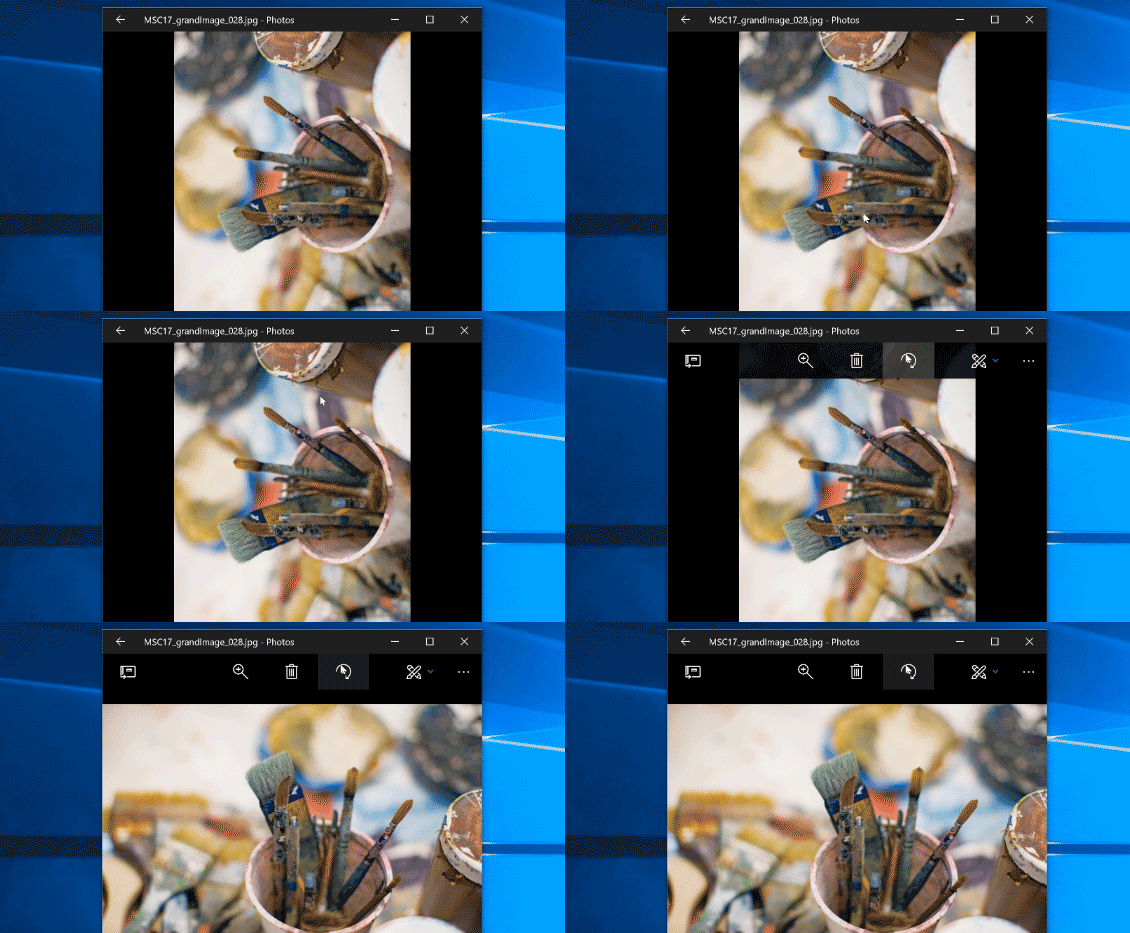
Open Photos  , select the photo you want to rotate, and then select Rotate
  in the top bar.
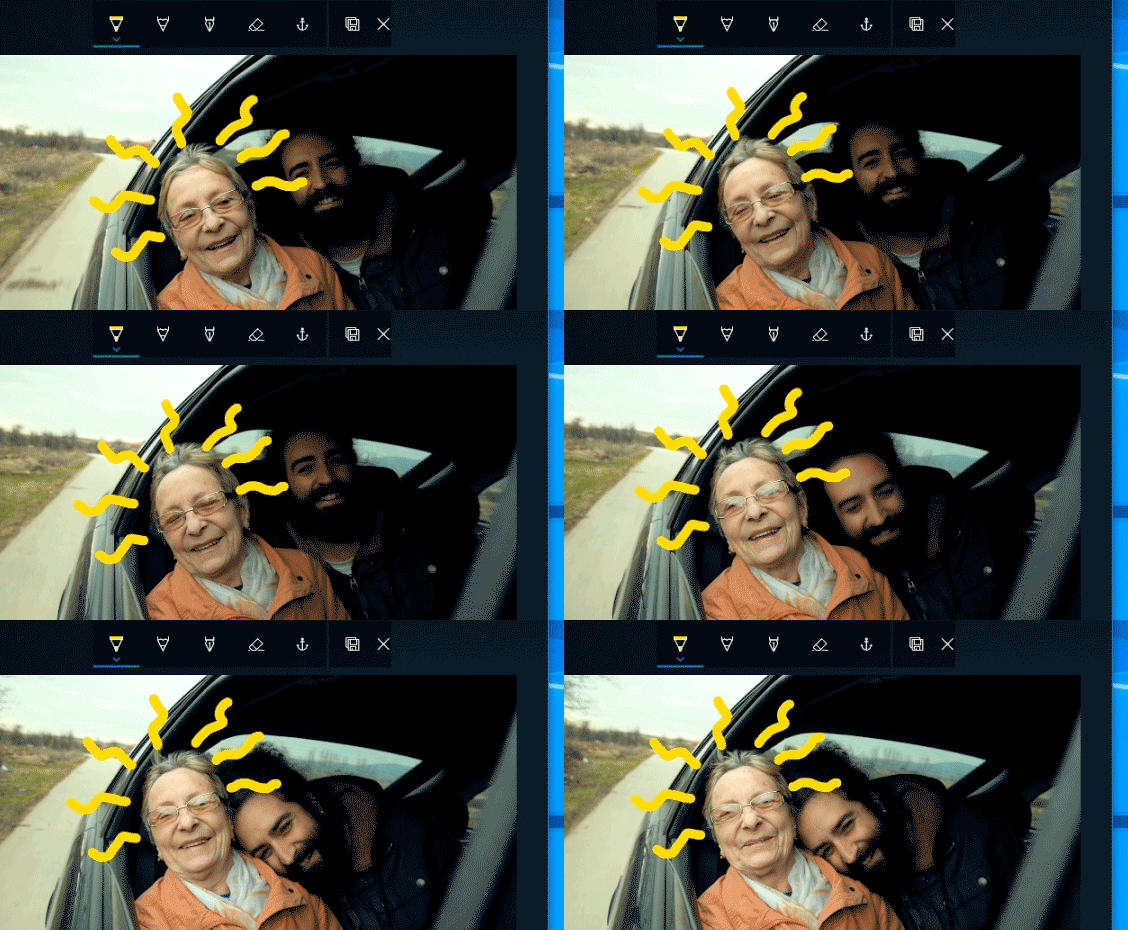
Open your video in Photos  , select it, then choose Edit & Create
  > Draw. Draw something on a moving object or person, then select Attach ink to an object. When you're done, select Save a copy
  .
.
To share a video project, select Export or share  , choose a file size, then select Share to social media, email, or another app
  .
.
.png)
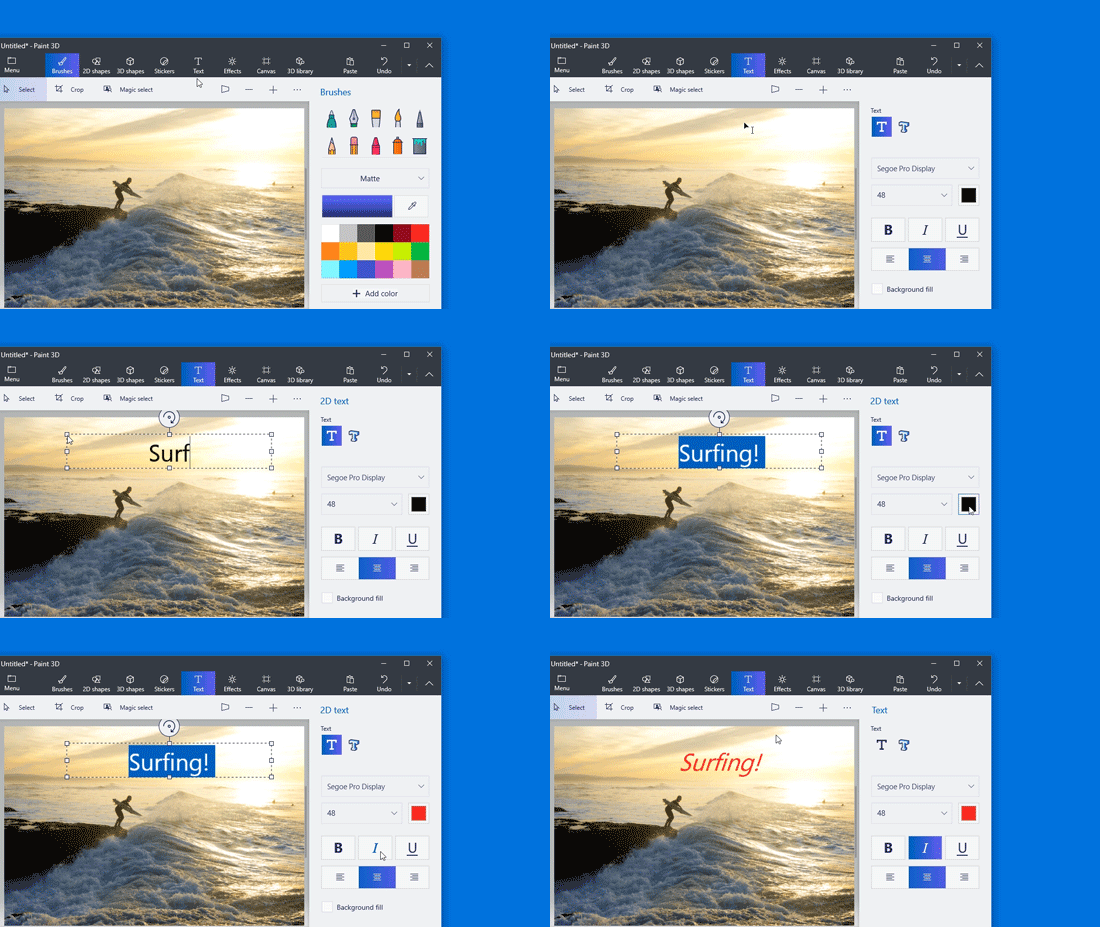
Open a photo in Paint 3D  (select Menu > Insert
  ), then select Text. Choose 2D or 3D text, select the image, and type the text. Move or rotate the text box and click outside the box to place it. Note: Once 2D text is placed, you can't move it again.
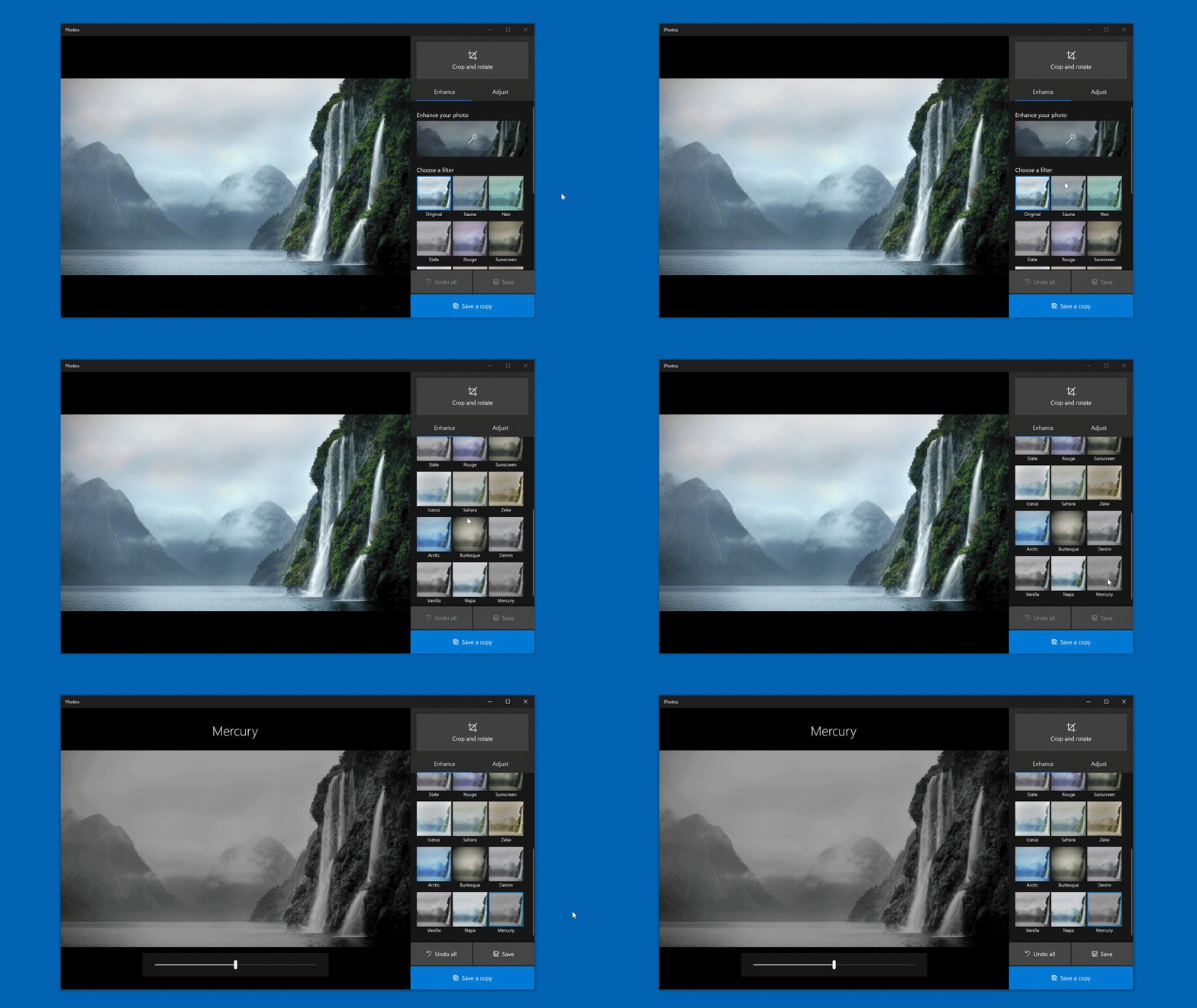
In Photos  , select a photo, tap or click it, and then select Edit & Create
  > Edit
  . Choose a black & white filter like Vanilla or Mercury, then select Save a copy
  .
.
When editing a video project in Photos  , select Audio
  > Music, then choose a song. The song will automatically adjust to fit the length of your video.
.png)
In Photos, select a video. Tap or click it, then select Edit & Create  > Trim
  . Drag the white circles to where you want the video to start and end, and then select Save a copy
  .
.
.png)
Search your photos for a person, place, thing, text, favorites, or specific files and folders. Photos  adds tags for you, so you can find what you want without endless scrolling.
.png)
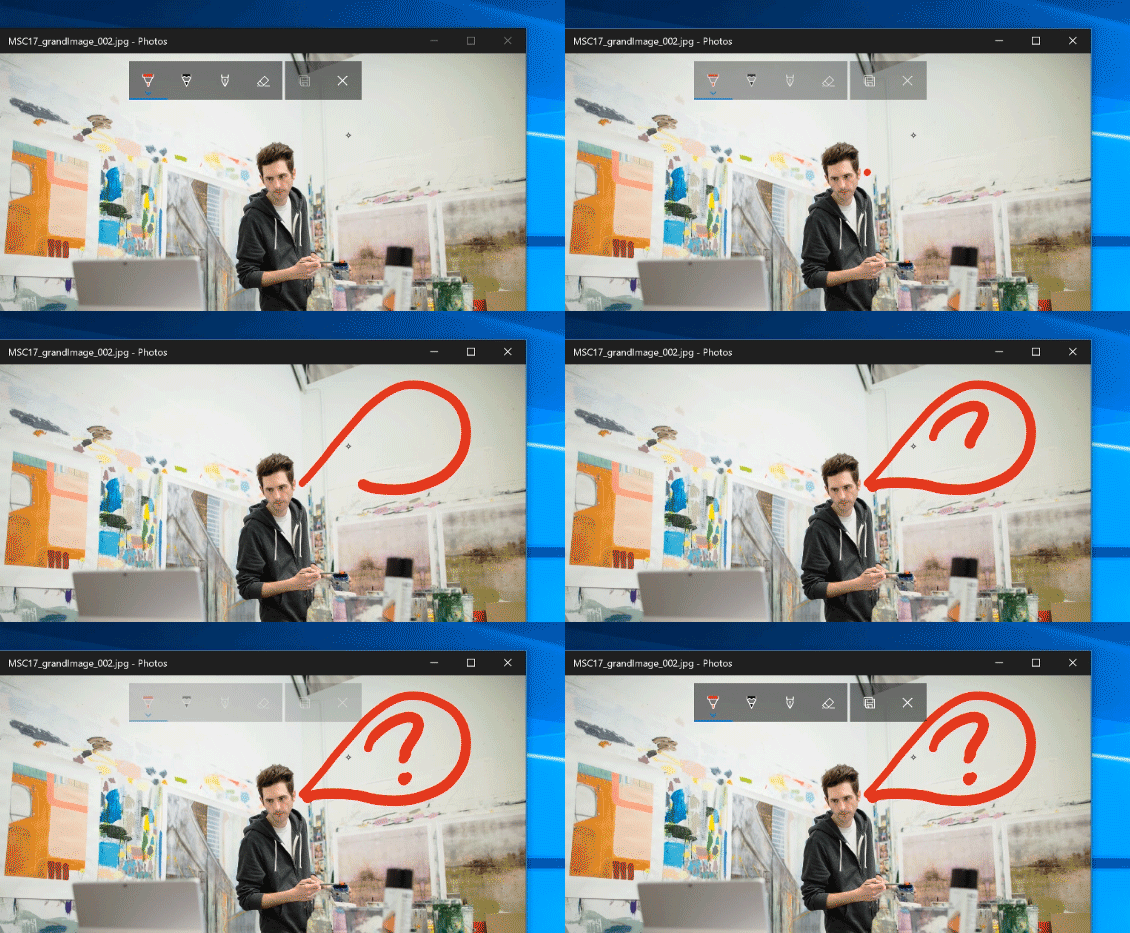
Open Photos  , select the photo, then select Edit & Create
  > Draw
  . Choose a drawing tool, and draw with a paired pen, your mouse, or your finger.
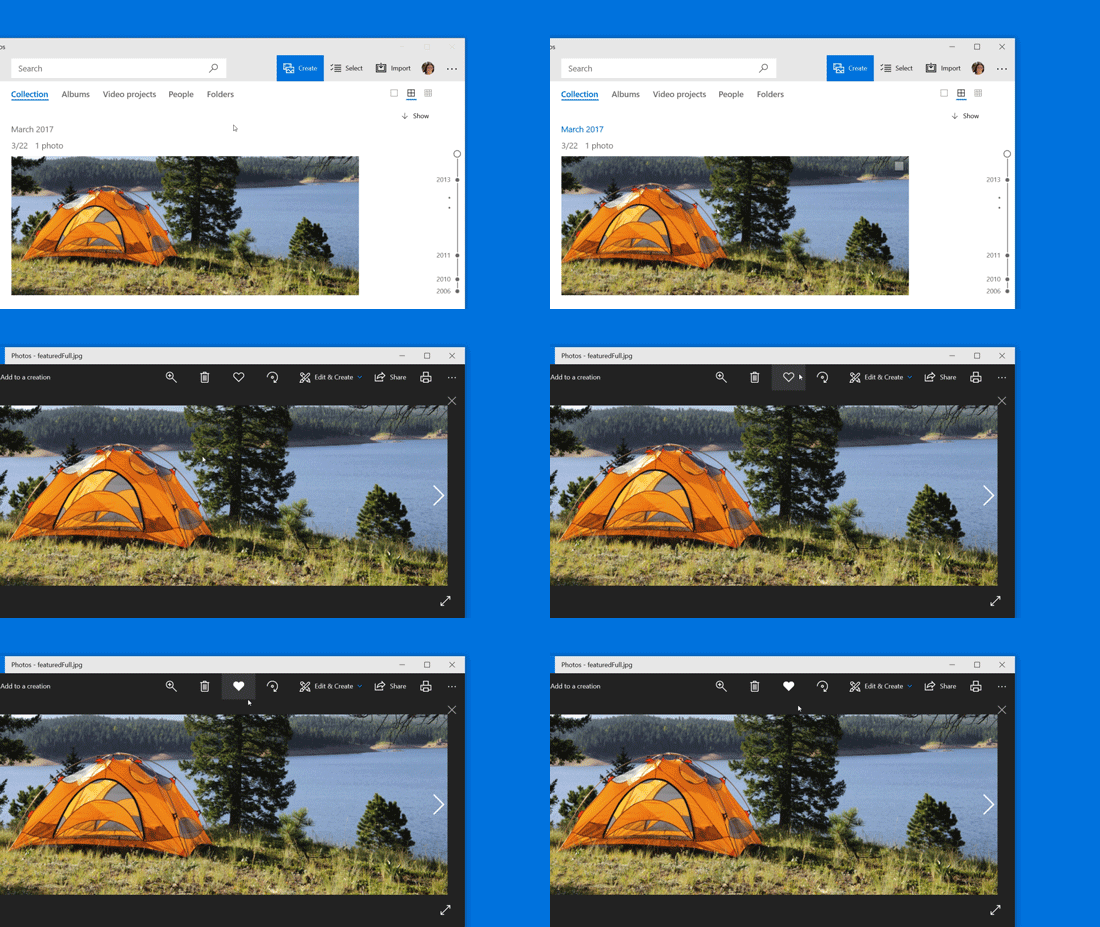
See your favorite photos at a glance. In Photos  , select the photo, then select Add to favorites
  (or select multiple photos, right-click, and select Add to favorites). To see them all, select the search box and choose Favorites
  .
.
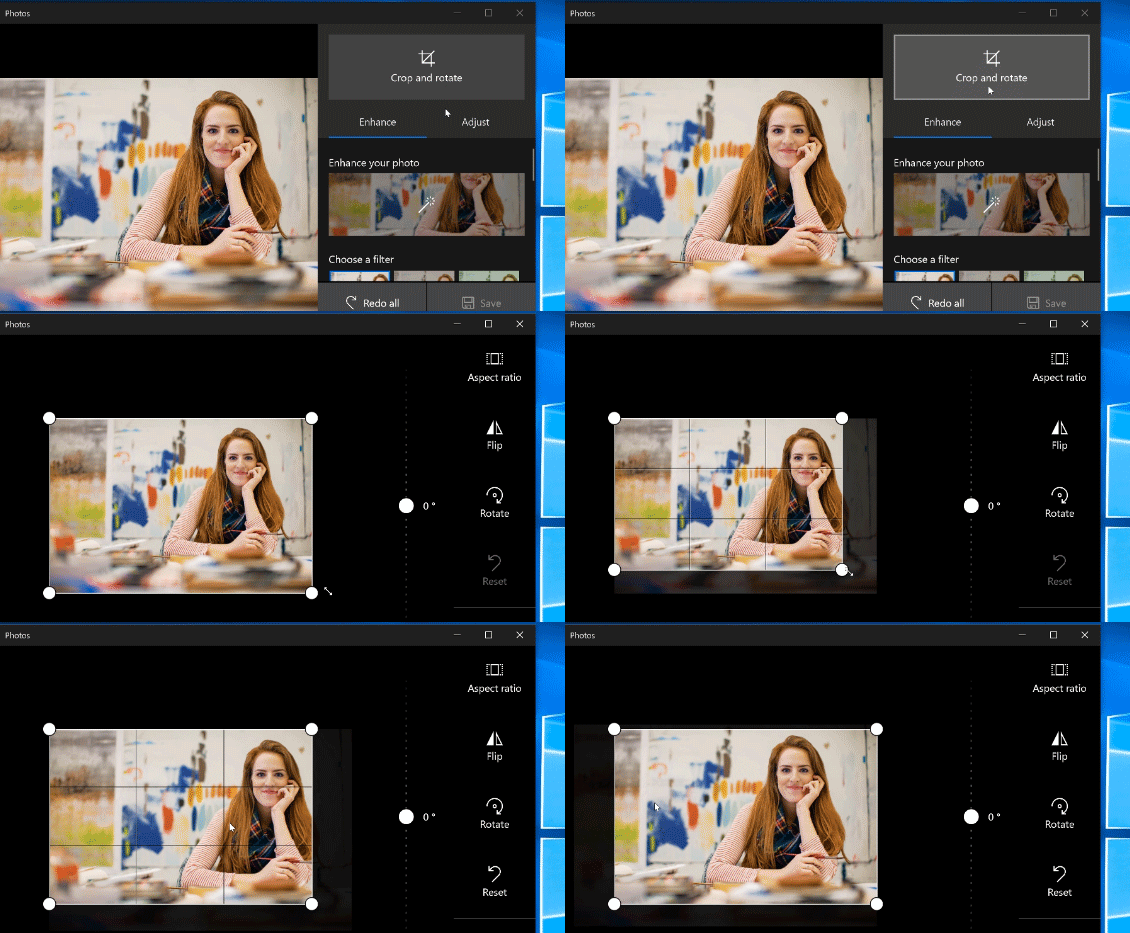
In Photos  , select an image. Tap or click it, then select Edit & Create
  > Edit
  > Crop and rotate
  . Drag the edges of the box, then select Done
  .
.
Source: Microsoft Tips

12/11/2025


